
GUI
The 3-step wizard, step by step.
TvakCollectorGui.exe is a 3-step wizard, folder-published — don't move the
exe out of its publish folder, it needs the files alongside it.
Step 1 — Select Items to Acquire
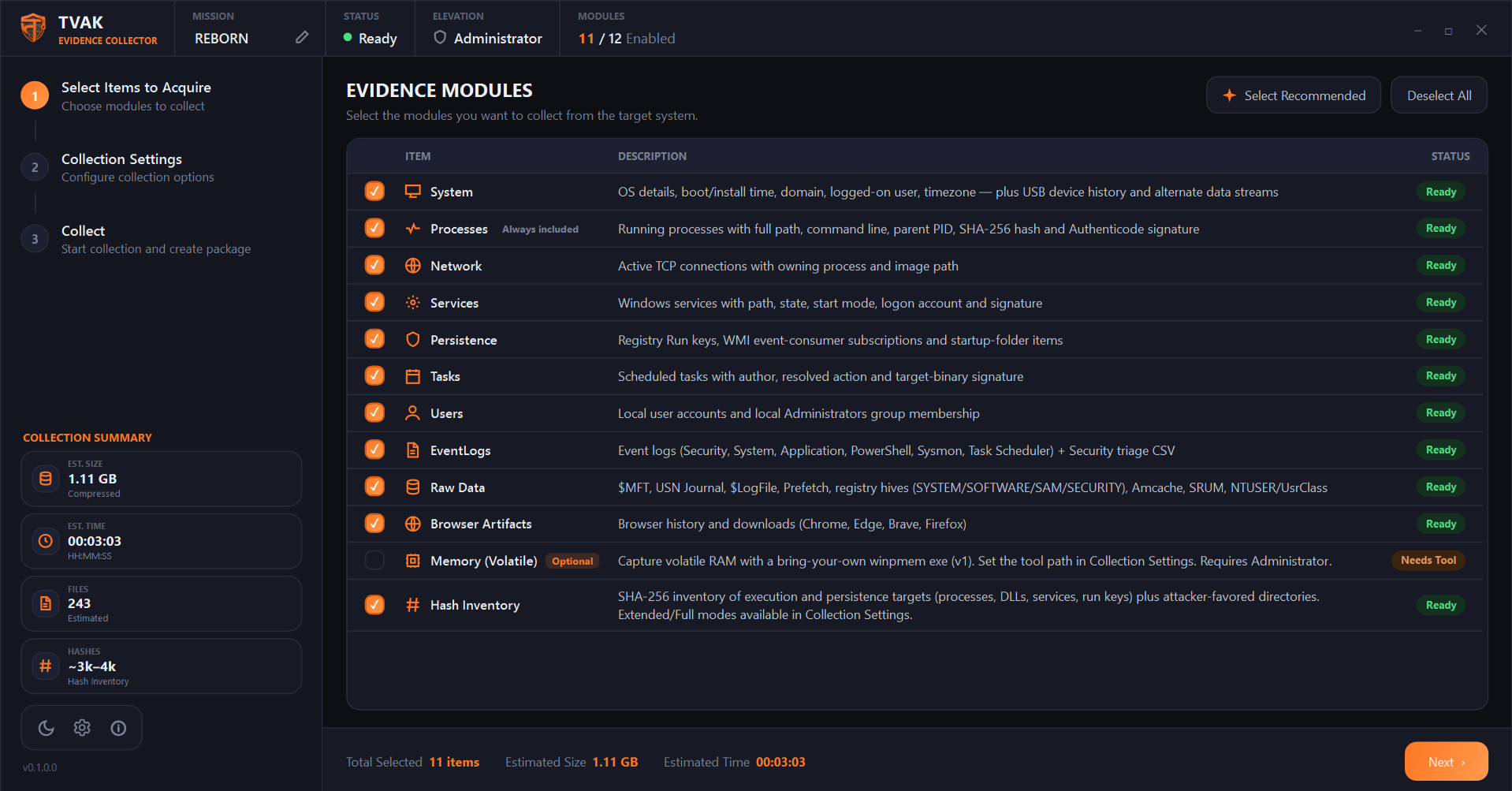
Toggle evidence modules on/off. Processes always runs and can't be deselected — it's the one module every other analysis workflow assumes exists. Use Select Recommended to reset to the default set, or Deselect All to start from nothing. The rail's Collection Summary shows a live, rough (machine-dependent) estimate of package size, time, files, and hash count as you toggle modules. See Evidence Handling for what each module collects.
Step 2 — Collection Settings
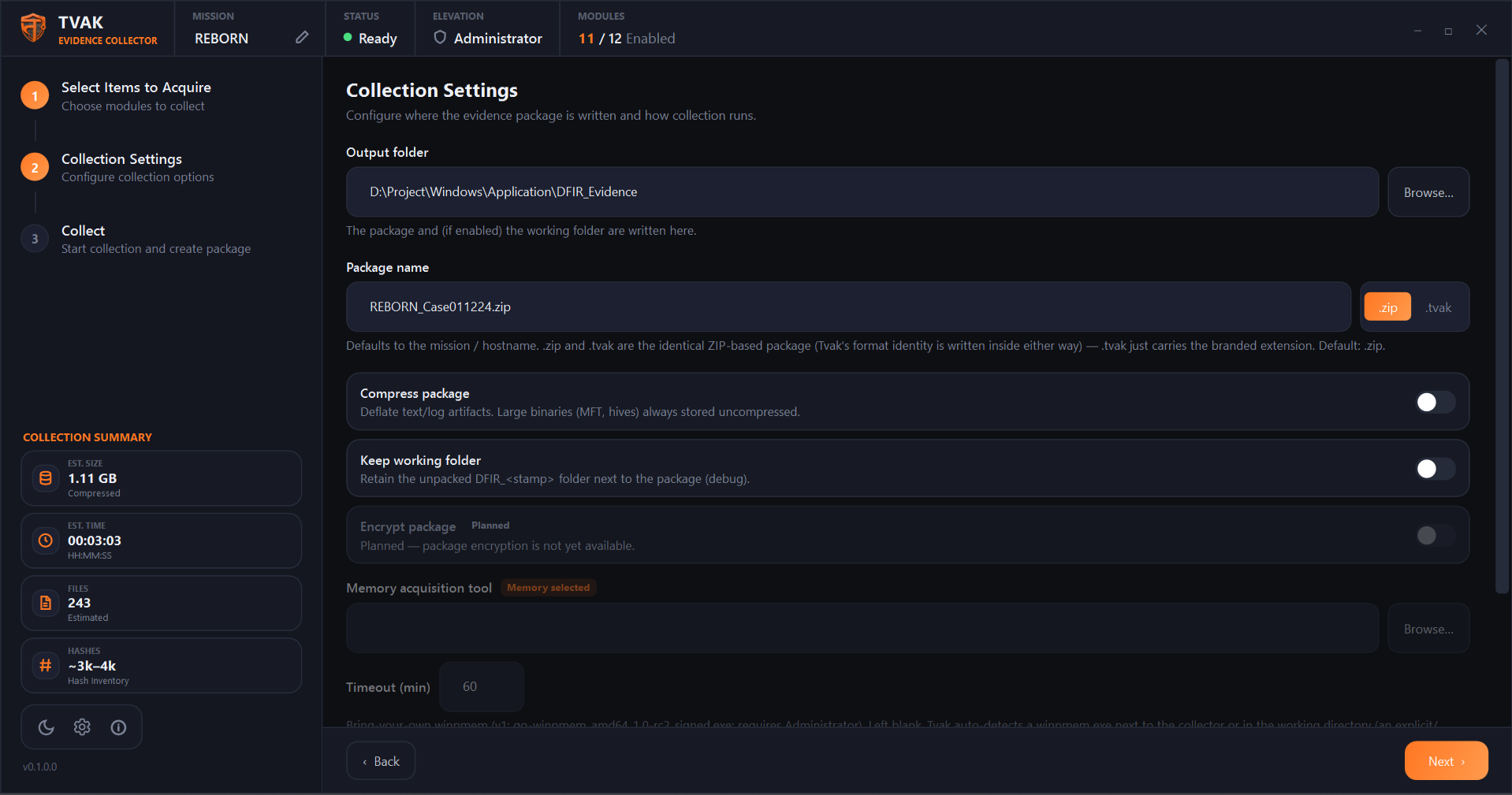
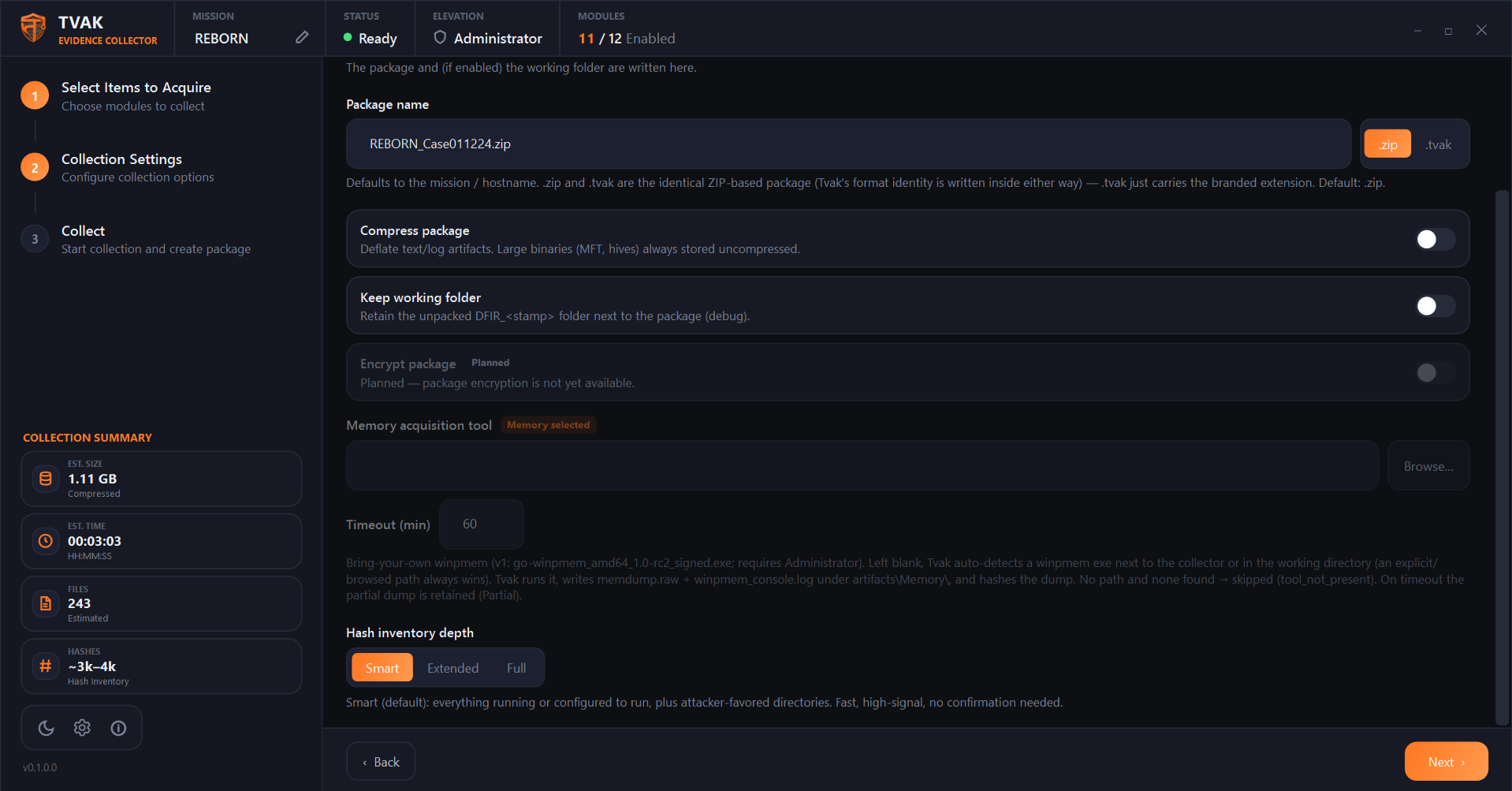
Output folder, package name/extension, compression, keep-working-folder, the disabled Encrypt-package placeholder, memory tool path/timeout, and Hash Inventory depth all live here. Full field-by-field detail is on the Configuration page.
Step 3 — Collect
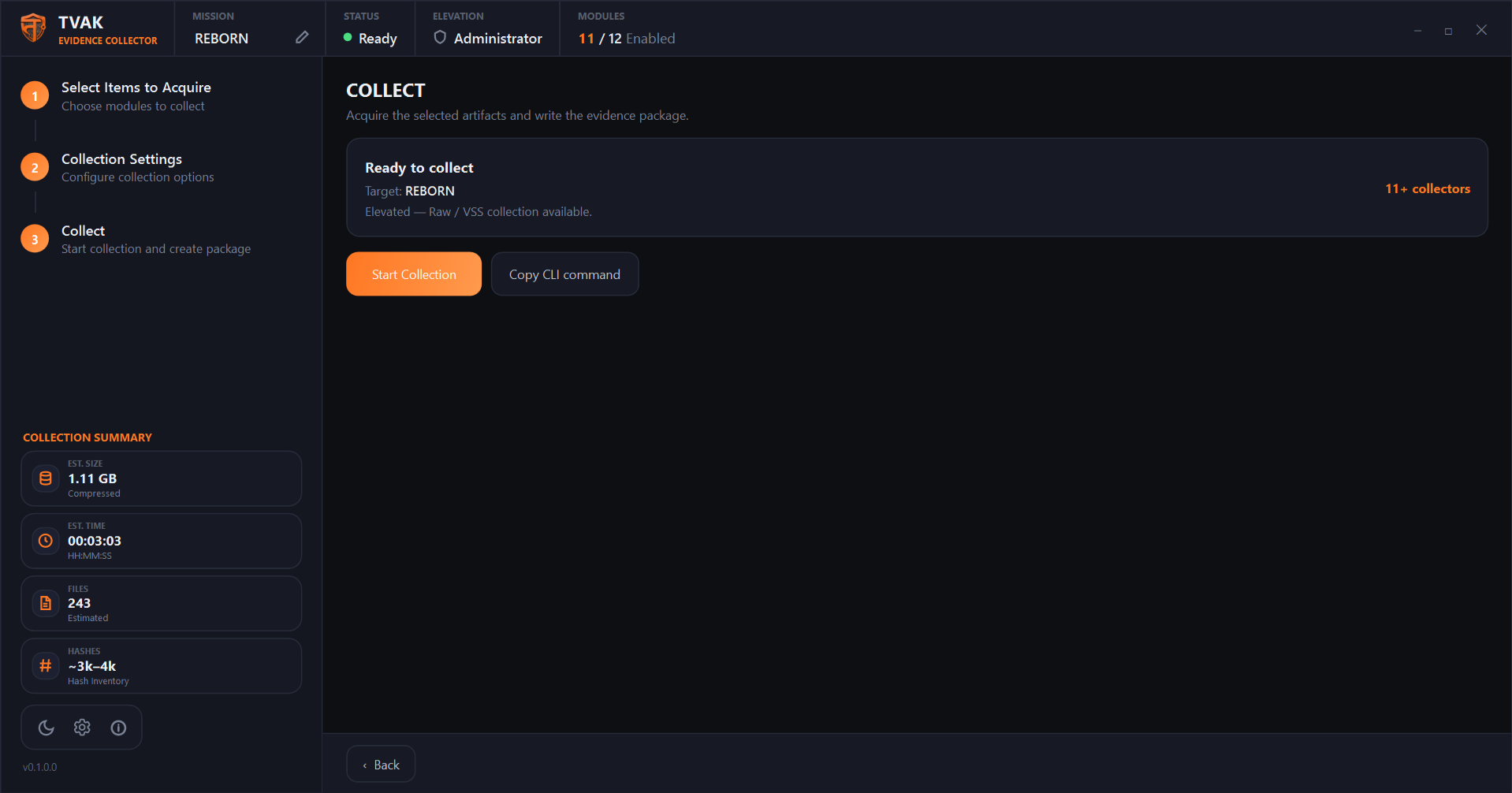
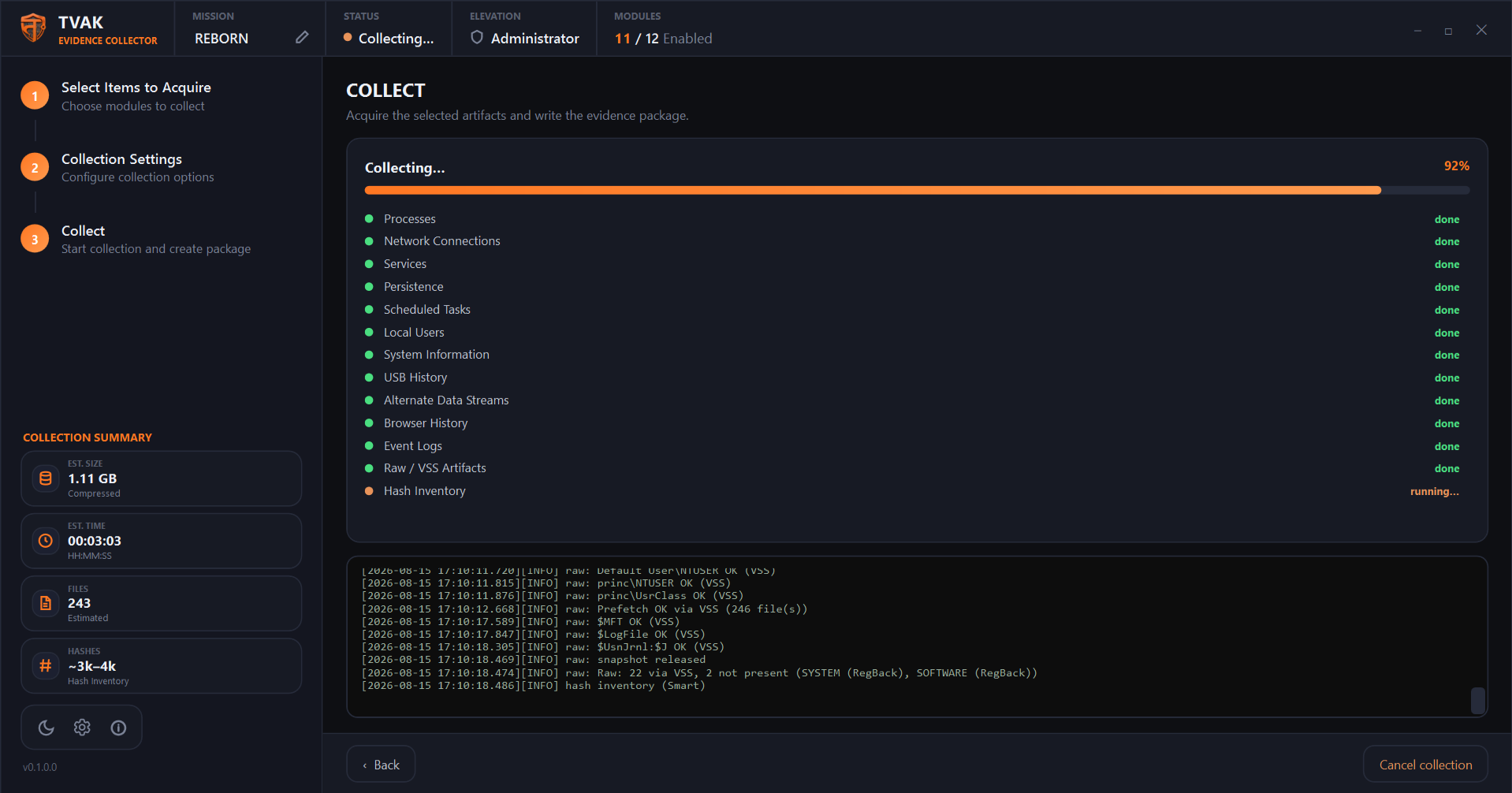
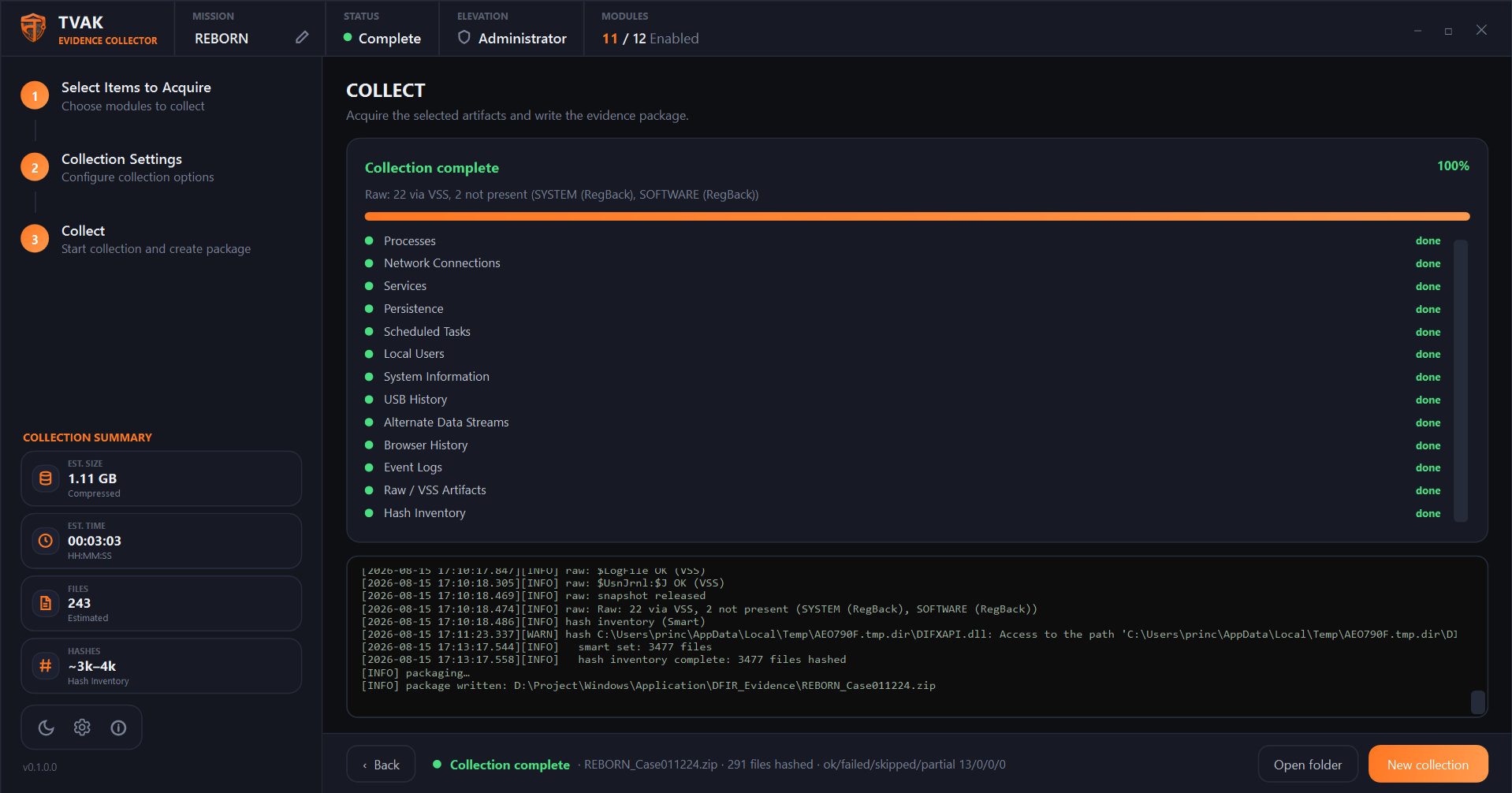
Shows a "Ready to collect" summary, then a live per-collector progress list and log while
running. Cancel collection stops mid-run and still writes a package with
whatever was collected so far — interrupted collectors are honestly recorded as
Partial, not silently dropped. When it finishes, the result collapses into a status
pill with Open folder and New collection buttons.
Next to Start Collection is Copy CLI command — copies the exact headless command line that reproduces your current selection (modules, output folder, extension, keep-working, memory settings) to the clipboard.
About panel
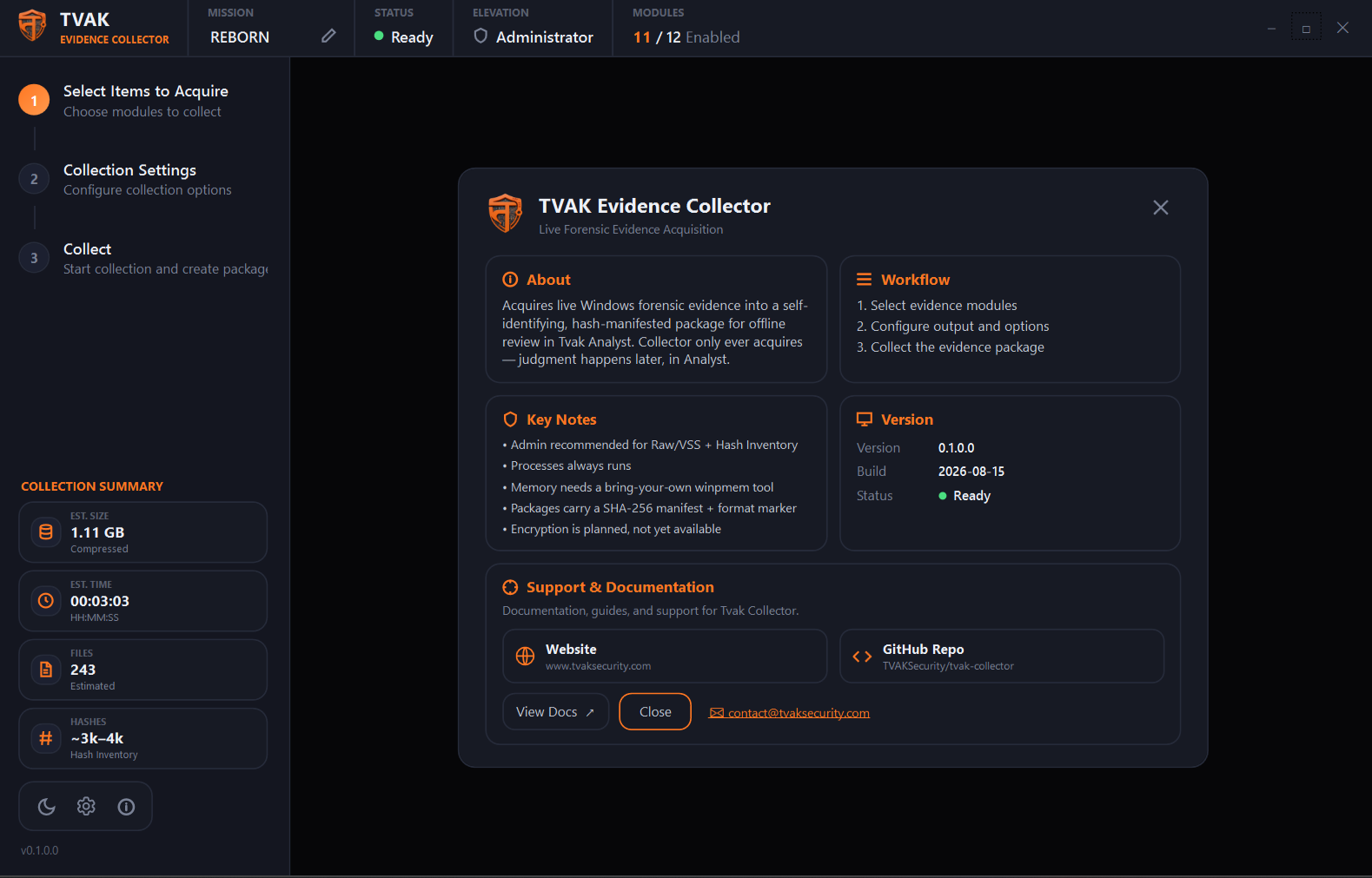
The info-circle icon in the bottom-left control row opens the About panel — what Collector does, the 3-step workflow, key operational notes, the exact running version and build date (always read live from the build, never hand-typed), and links to the website, GitHub repo, documentation, and support email.